Documentation
Open files

Open one or more log files using the 'Open' button in the main menu, by dragging them into Emlyzer, or via the context menu. Their contents are combined with any files already open, so you can filter and analyse the logs together.
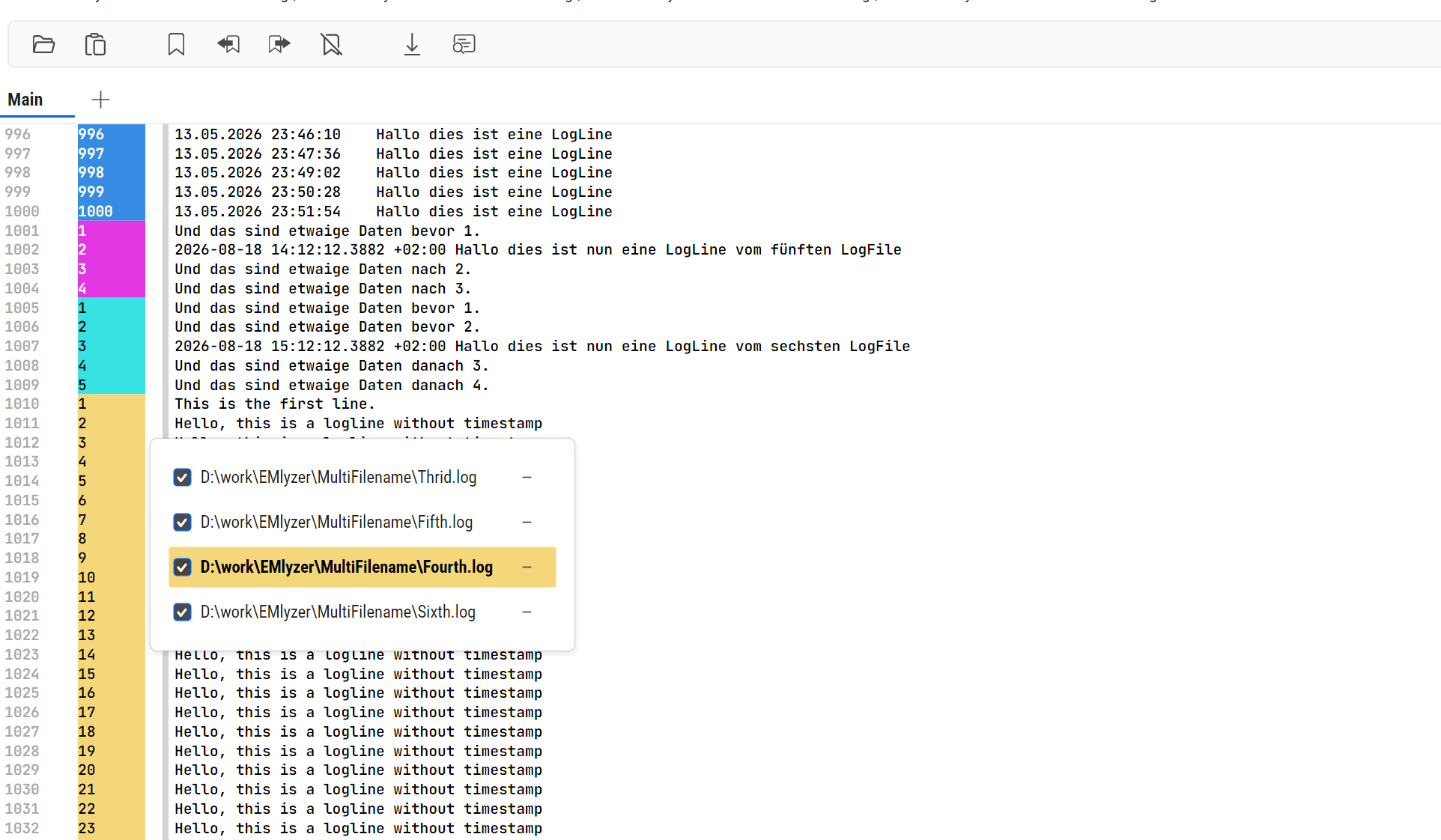
To display files in order of their last modification date instead of merging their log lines by timestamp, turn off 'Sort log lines by timestamp' in Settings. See the Settings section for details.
Highlight tokens
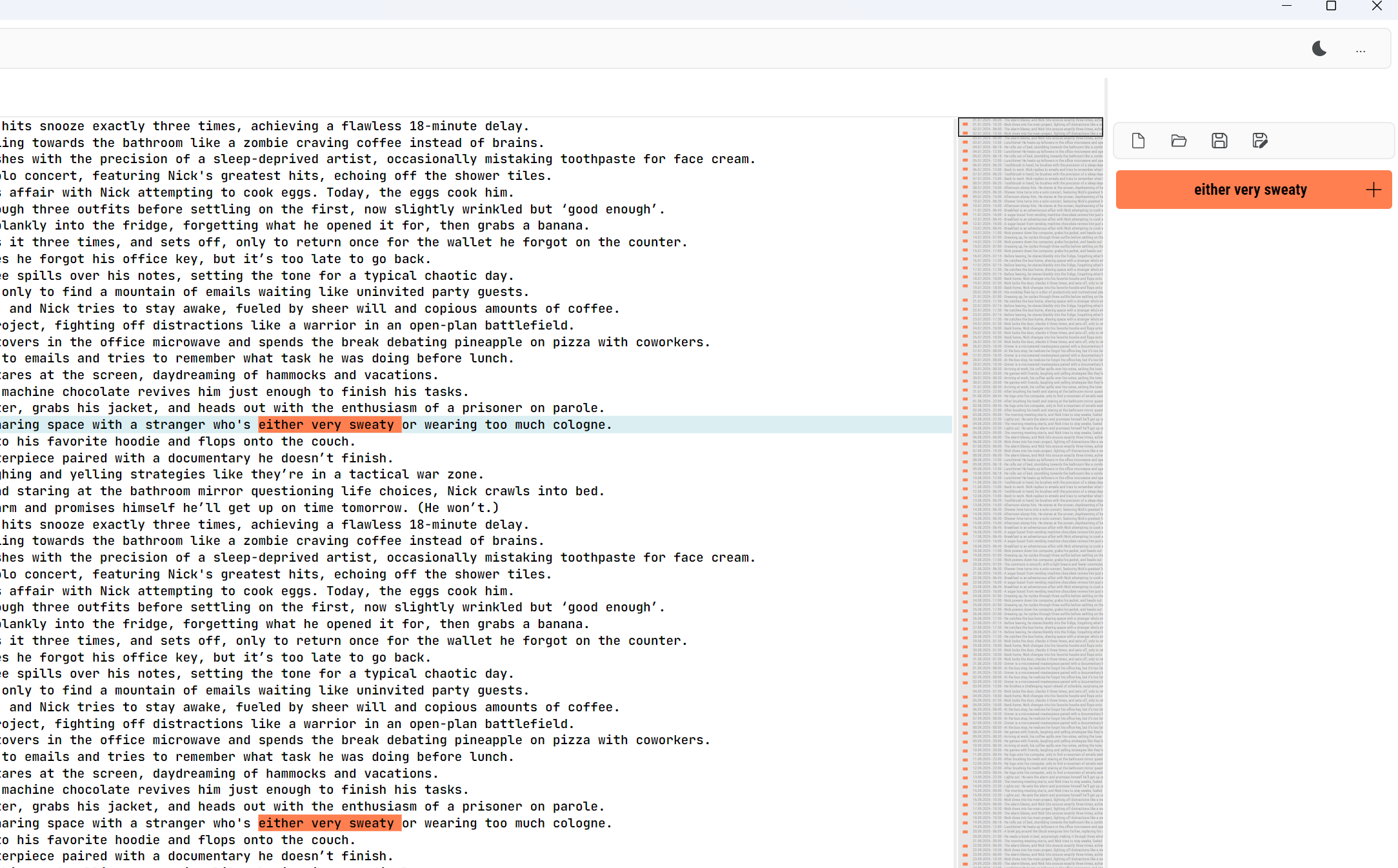
Select text in the log view to create a token in the list on the right. All occurrences of that text are highlighted in the same colour in both the log view and the LogMap.
To add a token manually, click the '+' button or press Ctrl+D. You can define multiple tokens and use the LogMap to see where they occur throughout the log.
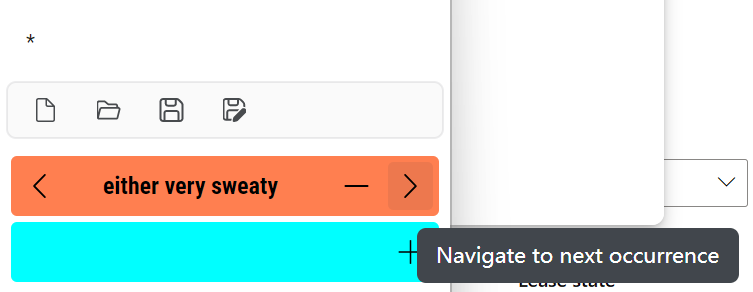
Use a token's '<' and '>' buttons to jump to its previous or next occurrence. Each jump starts from the current cursor position. Scrolling or navigating with the LogMap changes the visible area, but does not change the starting point for these jumps.
Use the LogMap

The LogMap shows where highlighted tokens occur throughout the log.
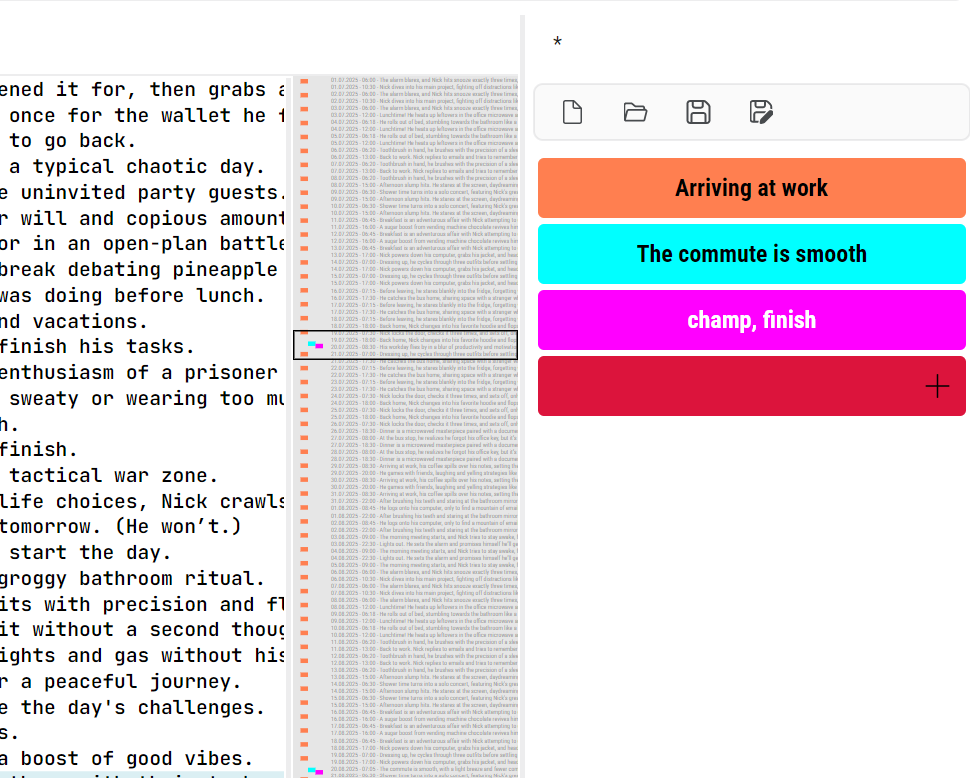
Click a position in the LogMap to jump directly to that part of the log.
The LogMap also shows all bookmarks in the log.
Use the Tokenlist

The token list shows all defined tokens. You can save a list to a token file and open it again later. Click a token to turn its highlighting on or off, or click its '-' button to delete it. This lets you focus on the tokens relevant to your analysis.
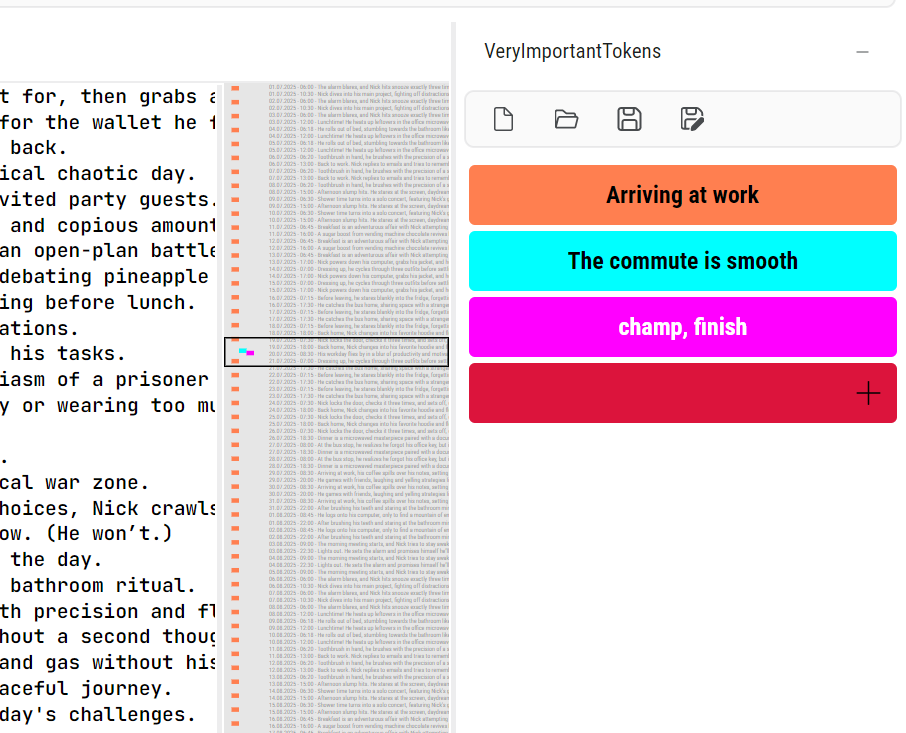
Use the '<' and '>' buttons next to a token to jump to its previous or next occurrence in the log.
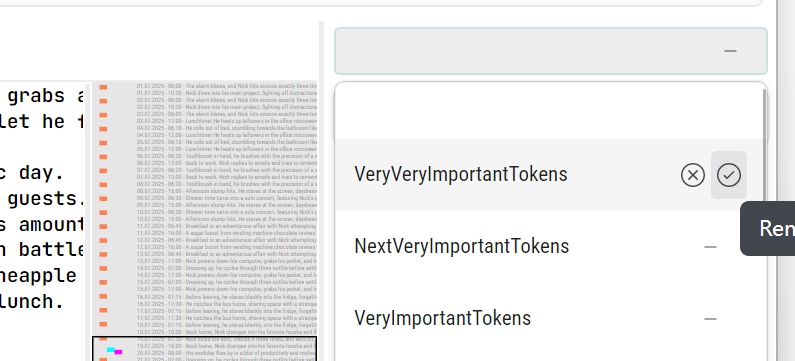
The drop-down list at the top provides quick access to token files you have saved or opened. Click the '-' button next to an entry to remove it from the history.
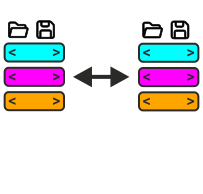
Token lists are synchronised across Emlyzer instances that have the same token file open. This lets you analyse different logs in separate instances while keeping their token definitions up to date.
Use new Views
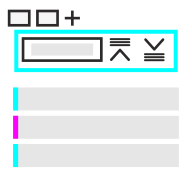
Click the '+' tab at the top of the log view to create a filtered view.
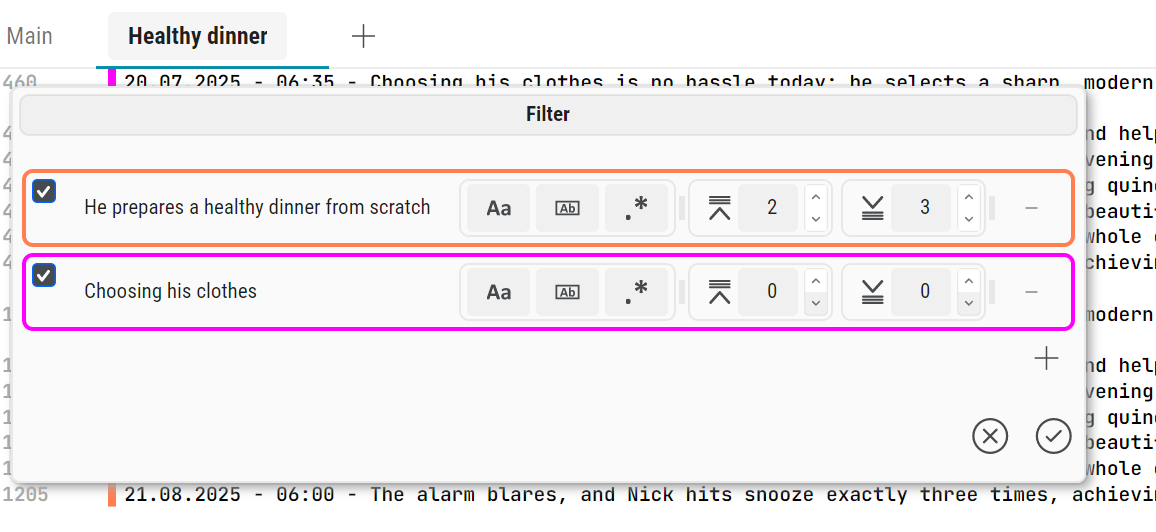
Click the '+' button to add a filter entry. Entries are combined with OR: a log line is included if it matches at least one entry.
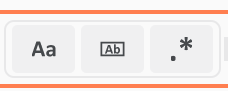
For each entry, you can enable case-sensitive or whole-word matching, or use a regular expression (regex) to match a pattern.
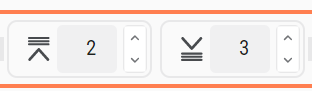
You can also specify how many lines before and after each match to include, so that relevant context remains visible.
Click the '-' button next to a filter entry to remove it.
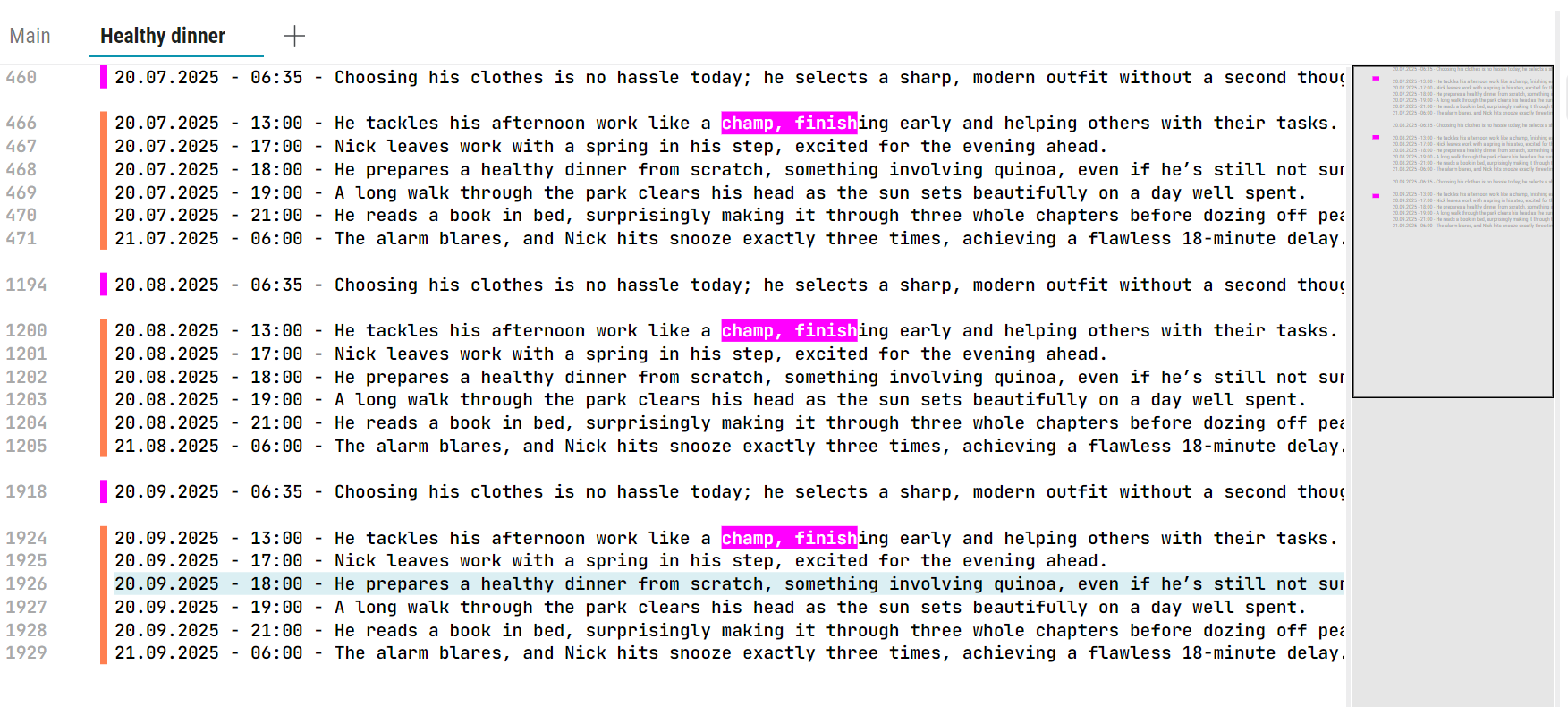
The filtered view displays the matching log lines and any surrounding context you have selected, with tokens highlighted and bookmarks visible.
Main Menu

The main menu gives you access to Emlyzer's core features: opening files, pasting log data, managing bookmarks and navigating the log.

Click the 'Open' button or press Ctrl+O to select a log file. Existing tokens are retained, so you can reuse them when analysing another log. If data is added to an open log file, Emlyzer refreshes the log when you return to the application.

Click the 'Paste' button to load log data from the clipboard. Existing tokens are retained and applied to the pasted data.

Use the bookmark buttons to add, remove or navigate between bookmarks. Each bookmark is linked to a log line and appears in the LogMap and all views containing that line. Press Ctrl+F2 to toggle a bookmark, F2 to jump to the next bookmark, or Shift+F2 to jump to the previous one.

Click the 'Go to' button or press Ctrl+G to display the line number field at the top left of the line number column.
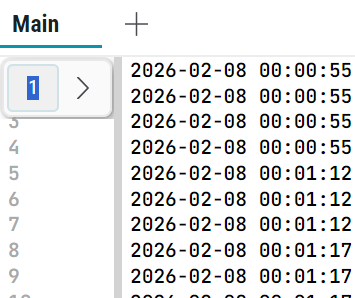
Enter a line number and press Enter to jump to it. Press Esc to hide the field.

Click the 'Search' button or press Ctrl+F to display the search field at the top right of the log view.
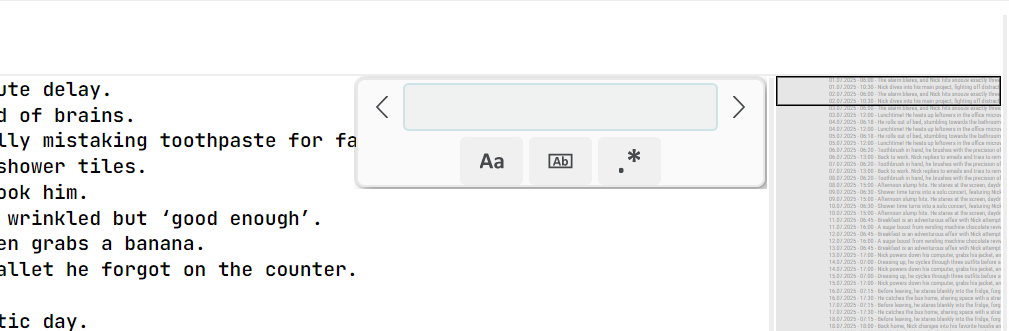
Enter the text to search for. Emlyzer jumps to the first match as you type. Use the '<' and '>' buttons to move between matches, or use the F3 and Ctrl+F3 keyboard shortcuts. You can enable case-sensitive or whole-word matching, or use a regular expression (regex). Press Esc to hide the search field.

Click this button to switch between dark and light mode.

Click this button to open the application menu.
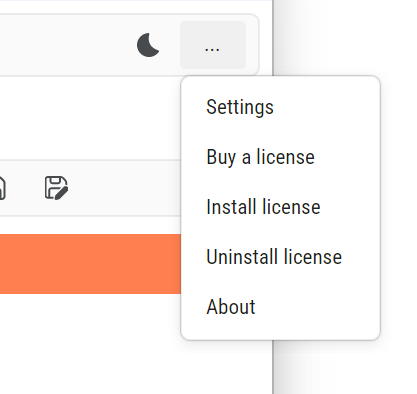
Settings: Configure context menu integration, anonymous diagnostic data, log sorting and early updates. See the Settings section for details.
Buy a license: Open the Emlyzer website in your browser to purchase a licence.
Install/Uninstall license: Enter the licence key you received after purchase to activate your licence, or click 'Uninstall' to remove it.
About: View the current Emlyzer version, licence details and legal information.
Settings
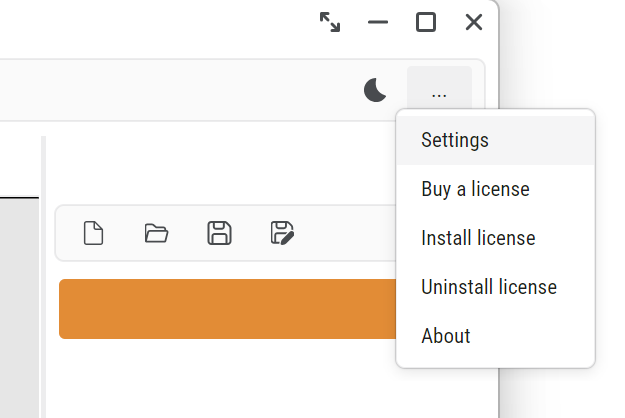
Open Settings from the application menu to configure Emlyzer.
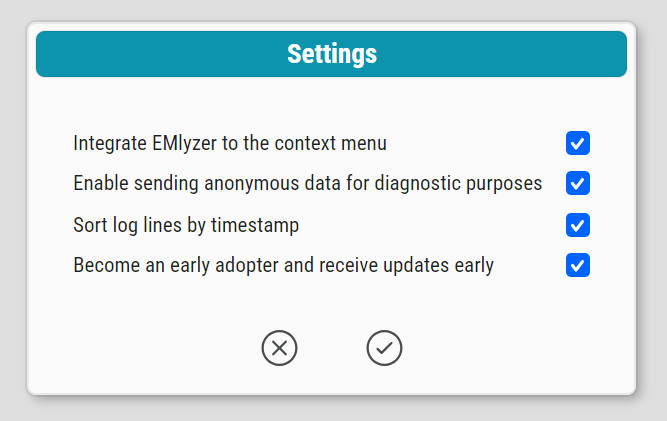
Integrate Emlyzer to the context menu: Add 'Open with Emlyzer' to the Windows Explorer context menu. This option is available only on Windows.
Enable sending anonymous data for diagnostic purposes: Allow Emlyzer to send anonymous diagnostic data to help us improve the application.
Sort log lines by timestamp: Merge log lines from all open files and sort them by timestamp. When this option is turned off, files are displayed in order of their last modification date.
Become an early adopter and receive updates early: Receive updates with new features before the next main release.